Bluetooth Headphones or Earbuds Won’t Connect? Try This

Charge the earbuds or headphones (and the case), turn Bluetooth off and on, and restart your phone or laptop. If they still will not connect, remove (forget) them from your device's Bluetooth list, put them back into pairing mode and pair them again.

Disconnect them from any other phone, tablet or laptop they were paired with, and reset them using the maker's instructions if nothing else works.

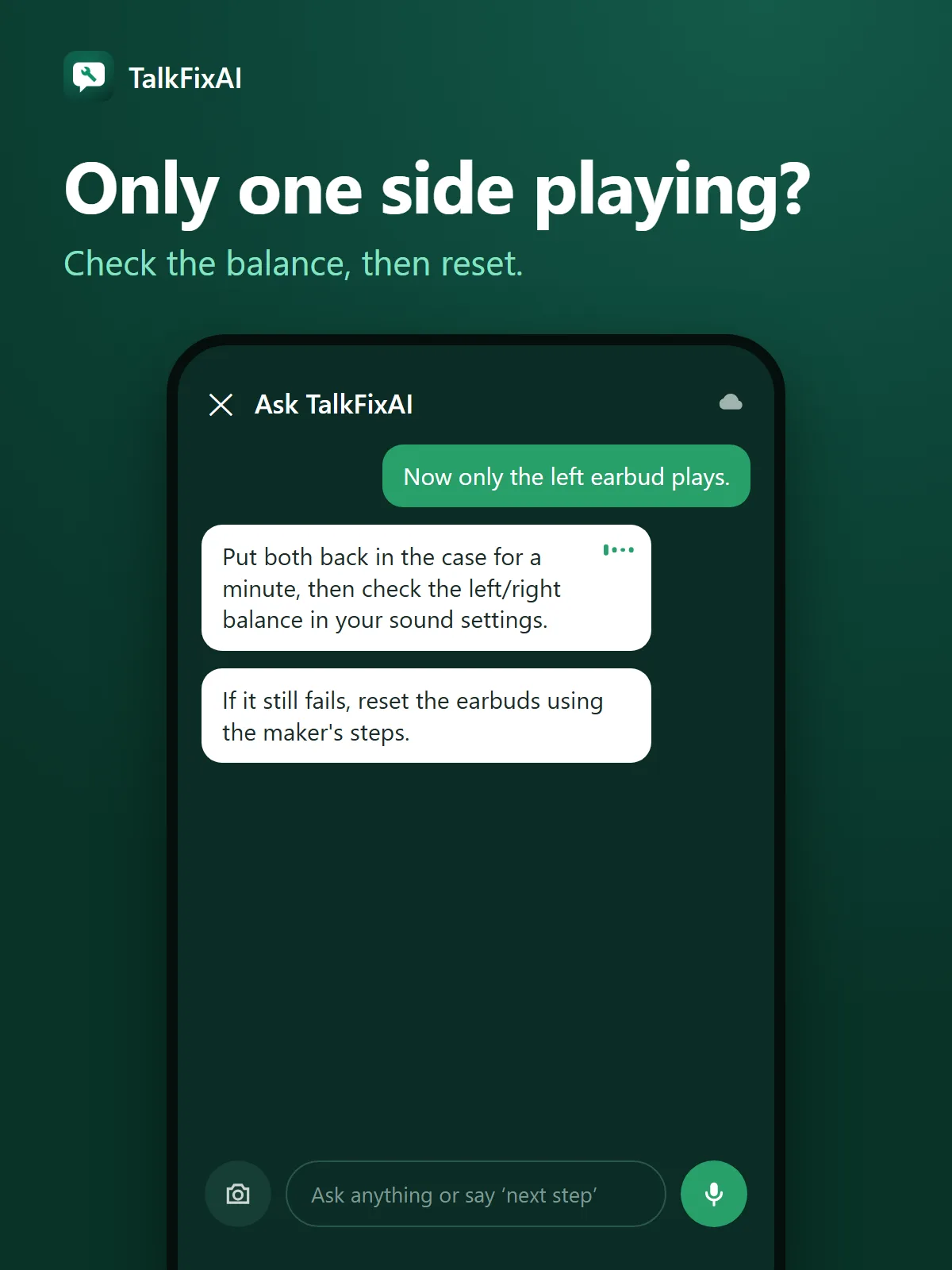
By , maker of TalkFixAI · Published

From charging the case to a full reset

  1. Step 1: Charge them and the case

    Put both earbuds in the case and check the case light shows they are charging, or plug over-ear headphones into their charger. Many headphones will not enter pairing mode or stay connected when the battery is low. Give them 15–30 minutes if they were completely flat.

  2. Step 2: Turn Bluetooth off and on and restart

    On your phone or computer, turn Bluetooth off and back on, and make sure airplane mode is off. Restart the phone or computer. For earbuds, put them back in the case, close the lid, wait about 15 seconds and open it again, as Apple suggests for AirPods.

  3. Step 3: Disconnect them from your other devices

    Earbuds often reconnect automatically to the last phone, tablet, laptop or TV they used, which can stop them connecting to the one in your hand. Turn Bluetooth off on the other devices nearby, or disconnect the earbuds from them, and try again.

  4. Step 4: Forget them and pair again

    In your device's Bluetooth settings, find the headphones, tap or click the info or settings icon and choose Forget or Remove device. Then put the headphones into pairing mode: usually by holding the button on the case or headphones until a light blinks (for most AirPods it blinks white). Choose them from the list of new devices on your phone or computer. Some older accessories ask for a code; Google says 0000 or 1234 are common.

  5. Step 5: Check the audio settings

    If they connect but you hear nothing, check the volume on both the device and the headphones, and make sure sound is set to play through them. On Android, open the device's Bluetooth settings and check Media audio (and Phone audio for calls) is on. On a Windows PC, choose the headphones as the output device. If sound plays only in one ear, check the left/right balance in your phone's accessibility or sound settings.

  6. Step 6: Update and reset

    Install any software update for your phone or computer and any firmware update in the headphone maker's app. On Windows, Microsoft recommends updating the Bluetooth driver and running the Bluetooth troubleshooter. If they still will not connect, reset the headphones using the steps in their manual or the maker's app; this clears their pairing list, so you will need to pair them again.

Why Bluetooth headphones will not connect

Bluetooth headphones store a short list of devices they have paired with and usually reconnect to the most recent one in range. Connection problems usually come from a low battery, the headphones being taken by another device, an out-of-date pairing record on your phone or computer, or a software glitch that a restart clears.

Range and interference matter too. Bluetooth works best within a few metres (about 10 ft) without walls in between. Microsoft notes that USB 3.0 ports and devices can interfere with Bluetooth on PCs, and Wi-Fi routers and microwave ovens can affect it too.

One earbud not working

If only one earbud plays, put both back in the case to charge, then try again. Check the left/right balance setting on your phone. Wax or dust can block the speaker mesh: clean it gently with a soft, dry brush and do not push anything into it or use water. If one earbud still does not connect after a reset, it may need repair or replacement under warranty.

AirPods with Android or Windows

AirPods work with Android phones and Windows PCs as standard Bluetooth headphones. Pair them by opening the case near the device and holding the setup button until the light blinks white, then selecting them in Bluetooth settings. Some features, such as automatic switching and certain controls, only work with Apple devices.
When to contact the headphone maker

Contact the headphone maker or the shop you bought them from if:

  • they will not charge, or the case shows no lights on a known-good charger,
  • one earbud will not pair or play after a full reset,
  • they keep disconnecting from several different phones or computers,
  • the earbuds or case get hot, swell or are physically damaged (stop using them),
  • they are under warranty and none of the steps above helps.

Do not try to open earbuds or replace their batteries yourself.

More earbud and headphone questions

Why won’t my Bluetooth headphones connect to my phone?

The most common reasons are a low battery, the headphones being connected to another device, and an outdated pairing record. Charge them, disconnect them from other devices, then forget them on your phone and pair them again.

How do I put my earbuds into pairing mode?

Pairing mode varies by brand. On many earbuds you hold the button on the case, or touch and hold both earbuds, until a light blinks. Most AirPods blink white in pairing mode. Your earbuds’ manual or the maker’s app has the exact steps.

Why is only one of my earbuds working?

One earbud may be flat, not seated in the case, or not synced with the other. Charge both in the case, check the left/right balance setting on your phone, clean the speaker mesh gently and reset the earbuds if needed.

Why do my Bluetooth headphones keep disconnecting?

A low battery, moving out of range, walls between you and the device, interference from Wi-Fi routers or USB 3.0 devices, and another device taking over the connection can all cause drop-outs. Updating your phone, computer and headphone firmware can also help.

Will resetting my headphones delete anything?

A reset clears the list of paired devices and may restore default settings, so you will need to pair them again with each phone or computer. It does not affect music or data on your phone.

Checked against: Apple Support: If your AirPods or AirPods Pro won’t connect; Android Help: Fix Bluetooth problems on Android; Microsoft Support: Fix Bluetooth problems in Windows.

How TalkFixAI talks you through a fix

The screens below illustrate a TalkFixAI conversation that follows the steps in this guide. Your own conversation will depend on what you describe.

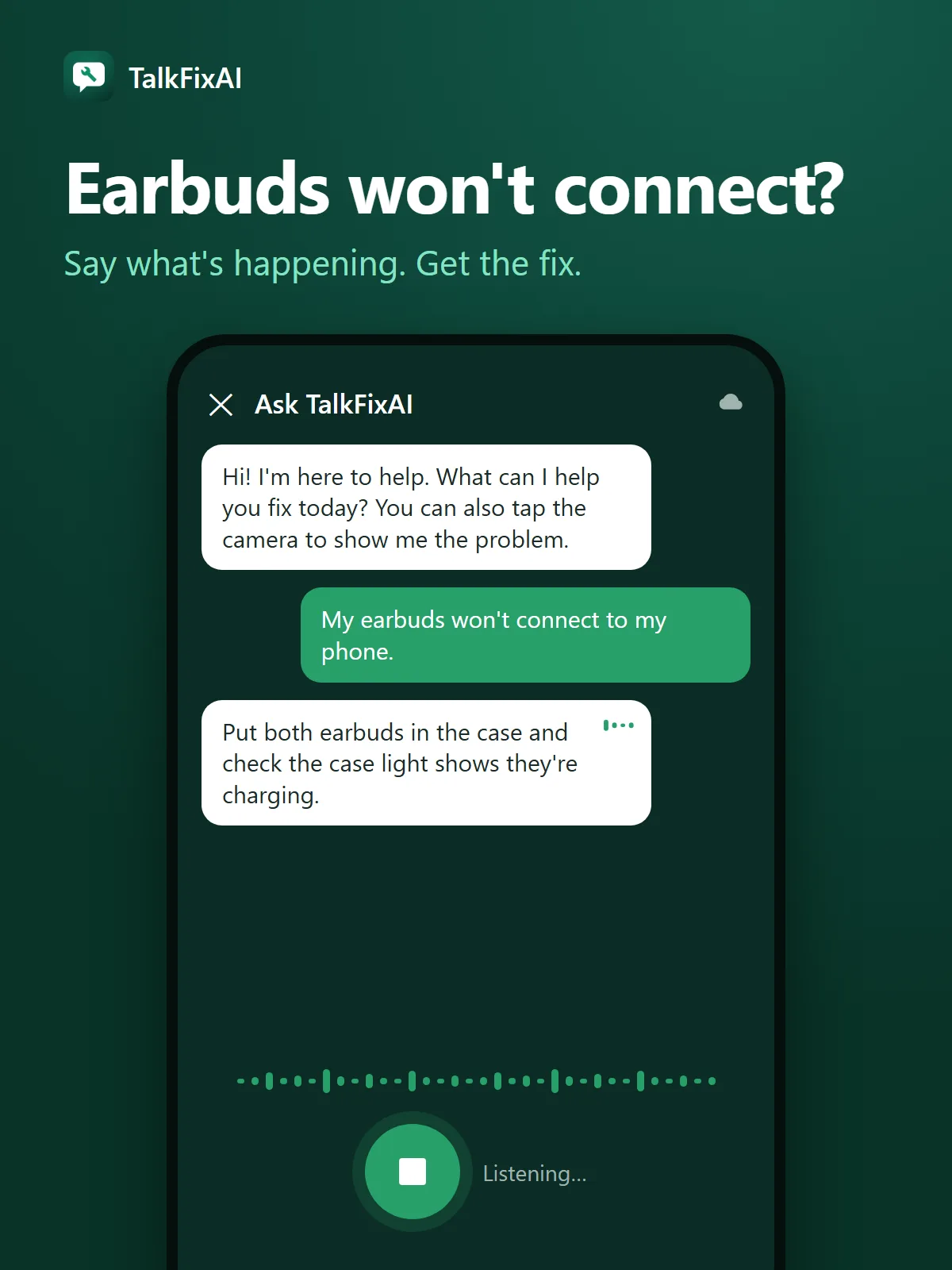
  1. Illustrated TalkFixAI chat. You: “My earbuds won't connect to my phone.” TalkFixAI: “Put both earbuds in the case and check the case light shows they're charging.”
    Step 1Earbuds won't connect?Say what's happening. Get the fix.
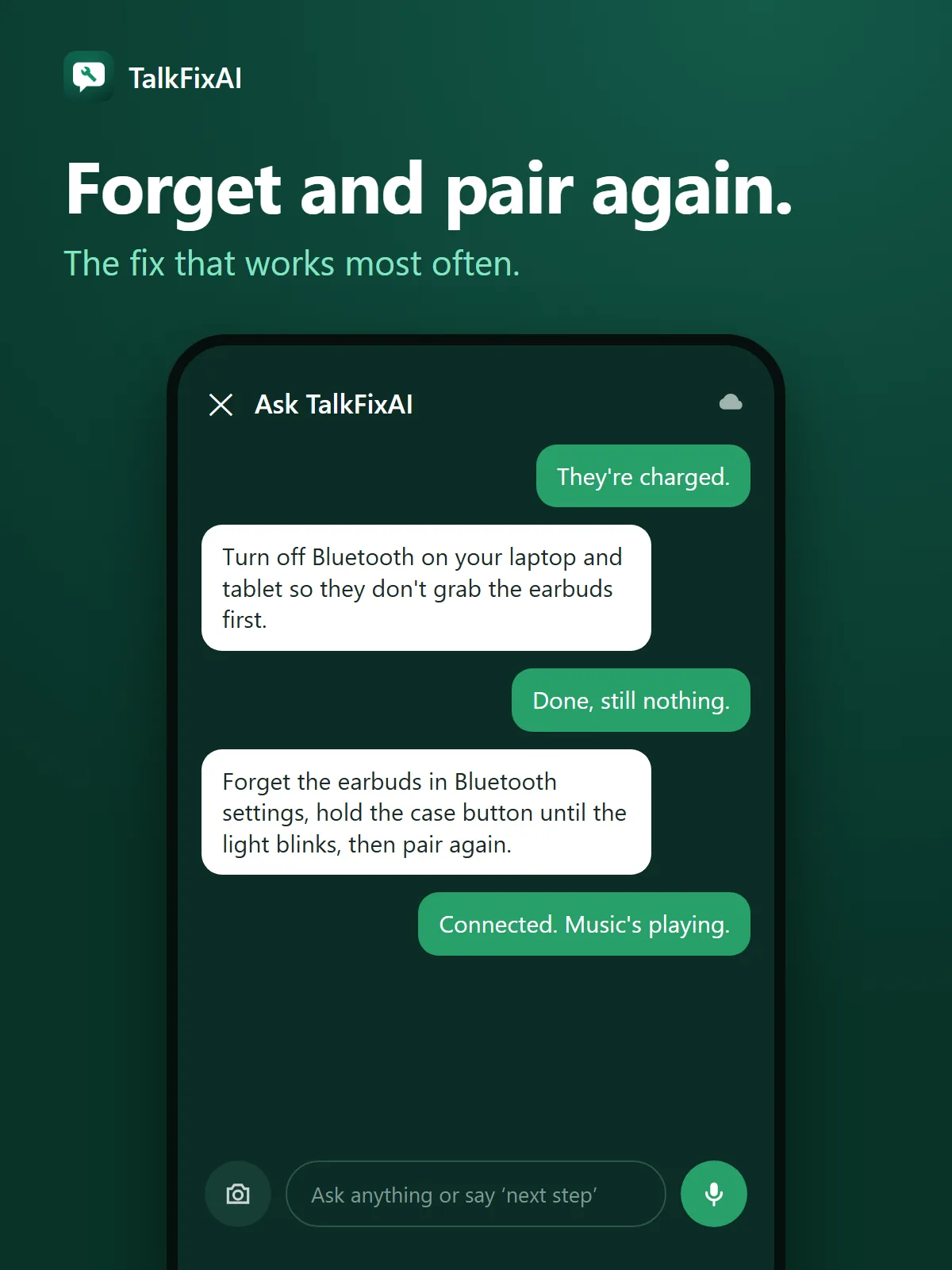
  2. Illustrated TalkFixAI chat. You: “They're charged.” TalkFixAI: “Turn off Bluetooth on your laptop and tablet so they don't grab the earbuds first.”
    Step 2Forget and pair again.The fix that works most often.
  3. Illustrated TalkFixAI chat. You: “Now only the left earbud plays.” TalkFixAI: “Put both back in the case for a minute, then check the left/right balance in your sound settings.”
    Step 3Only one side playing?Check the balance, then reset.

Want TalkFixAI to talk you through this repair hands-free while your hands are busy? Try TalkFixAI, the free repair assistant that answers by voice, even offline.

More phone and gadget fixes