Phone Touch Screen Not Responding? Try These Fixes

Start with a force restart: it clears most frozen screens on both iPhone and Android. Then dry and clean the screen, remove the case and screen protector, and unplug any charger, since moisture, a lifted protector or a poor-quality charger can all stop touch from working.

If the screen is cracked or the phone is bulging, stop and get it repaired.
By , maker of TalkFixAI · Published

Restart, clean, then strip it back

  1. Step 1: Force restart the phone

    iPhone 8 or later: press and quickly release volume up, press and quickly release volume down, then press and hold the side button until the Apple logo appears. Most Android phones: press and hold the power and volume-down buttons together for about 10–20 seconds until the phone restarts. Button combinations vary by model, so check your phone maker's support page if this does not work.

  2. Step 2: Dry and clean the screen

    Wipe the screen with a soft, dry, lint-free cloth. Water drops, sweat, oil and lotion can block or confuse the touch sensor. Make sure your fingers are clean and dry, and take off gloves unless they are touchscreen gloves.

  3. Step 3: Remove the case and screen protector

    A tight case can press on the screen edges, and a thick, cracked or lifting screen protector can stop touches registering. Remove both and test. If touch works without the protector, replace it with a thinner one.

  4. Step 4: Unplug the charger and accessories

    If the screen jumps around or taps by itself only while charging, the charger or cable may be the cause. Unplug it and test again, then try a charger from the phone's maker.

  5. Step 5: Check for a misbehaving app or update

    If touch fails only in one app, update or reinstall that app. On Android, restarting in Safe mode turns off downloaded apps: if touch works there, a recently installed app is likely the cause. Install pending system updates once the screen responds.

  6. Step 6: Back up, then consider a repair

    If the screen still does not respond, back up your phone as soon as you can (connect it to a computer or use cloud backup if part of the screen works). Then contact the manufacturer or an authorised service centre. A factory reset erases your data and should only be a last step after backing up.

Frozen screen, ghost touch or dead spots?

  • Entire screen frozen: usually software. A force restart fixes most cases.
  • Phone taps or swipes by itself (ghost touch): often a charger, moisture, a dirty or damaged protector, or a damaged display.
  • One area does not respond: often physical damage to the display, even without a visible crack. This usually needs a screen replacement.

If the phone was recently dropped or got wet, mention it to the service centre; it helps them diagnose the fault and check warranty or insurance cover.

Parts and tools you may need

Most fixes in this guide need no parts, so do the checks first. If you do need one, match it to your brand and model before you buy.

As an Amazon Associate, AICK Studio earns from qualifying purchases. It does not change the price you pay.

When the screen needs a service centre

Take the phone to the manufacturer or an authorised service centre if:

  • the screen is cracked, has lines, or shows dead areas,
  • the phone is bulging, hot or smells unusual,
  • it got wet and still misbehaves after drying,
  • touch still fails after a force restart and the checks above.

Unofficial repairs can affect your warranty and water resistance.

Ghost touch, resets and other screen questions

Why is my phone touch screen not working?

Most often a software freeze, moisture or dirt on the screen, a lifted screen protector or a faulty charger. Physical damage to the display and swollen batteries are less common but need professional repair.

How do I restart my phone if the screen does not respond?

Use the force-restart button combination. On iPhone 8 or later: press volume up, press volume down, then hold the side button until the Apple logo appears. On most Android phones, hold power and volume-down together for about 10–20 seconds.

Why does my phone screen touch by itself?

A phone screen that touches by itself ("ghost touch") is often caused by a poor-quality charger, moisture on the screen, a damaged screen protector or a damaged display. Unplug the charger and clean the screen first.

Will a factory reset fix an unresponsive touch screen?

A factory reset can fix software problems, but it erases your data and will not fix hardware damage. Back up first and try a force restart, cleaning and Safe mode before resetting.

Checked against: Apple Support: If the screen isn’t working on your iPhone or iPad; Apple Support: Force restart iPhone; Google Pixel Help: Fix touch and response issues on your Pixel screen.

How TalkFixAI talks you through a fix

The screens below illustrate a TalkFixAI conversation that follows the steps in this guide. Your own conversation will depend on what you describe.

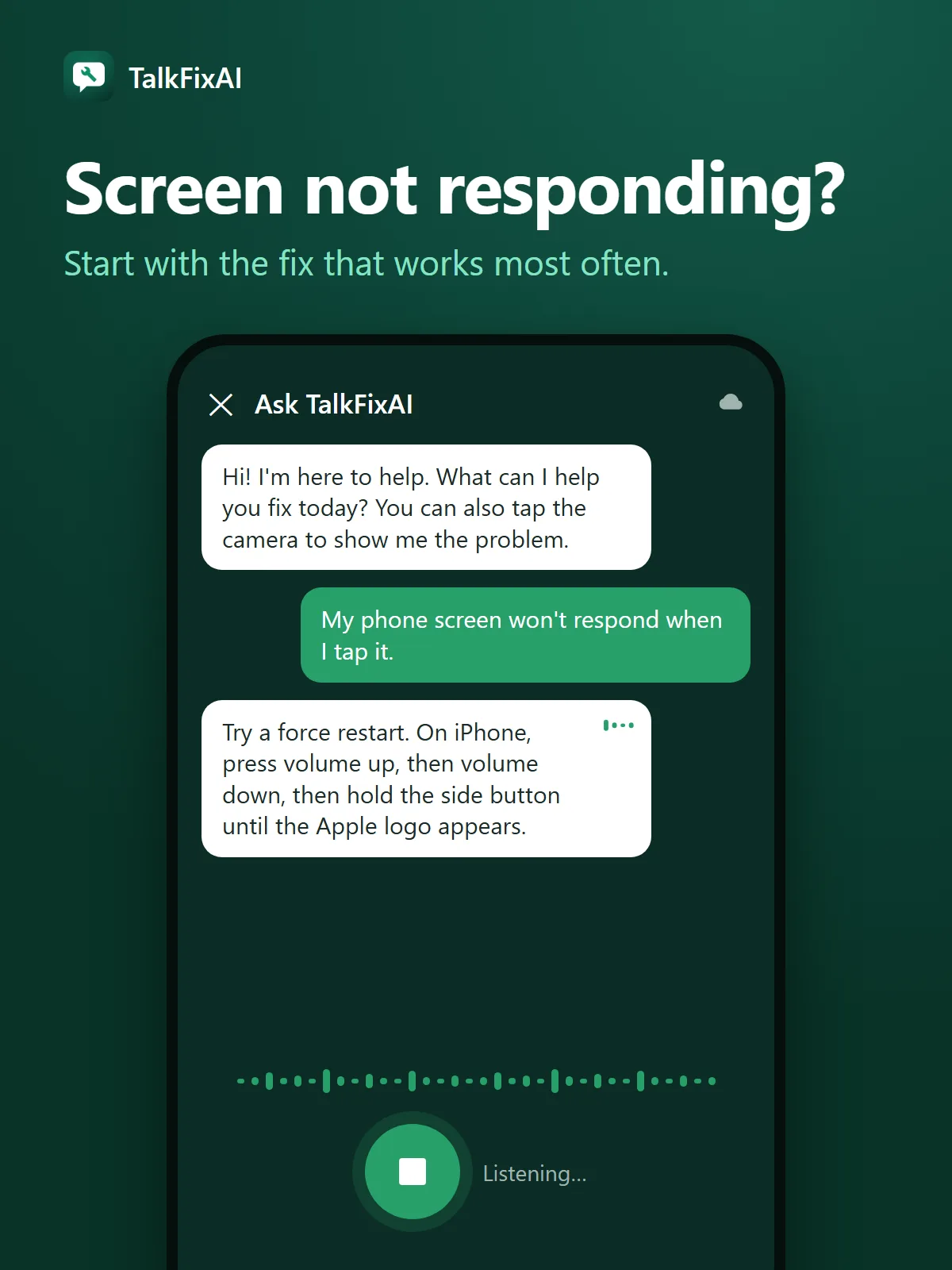
  1. Illustrated TalkFixAI chat. You: “My phone screen won't respond when I tap it.” TalkFixAI: “Try a force restart. On iPhone, press volume up, then volume down, then hold the side button until the Apple logo appears.”
    Step 1Screen not responding?Start with the fix that works most often.
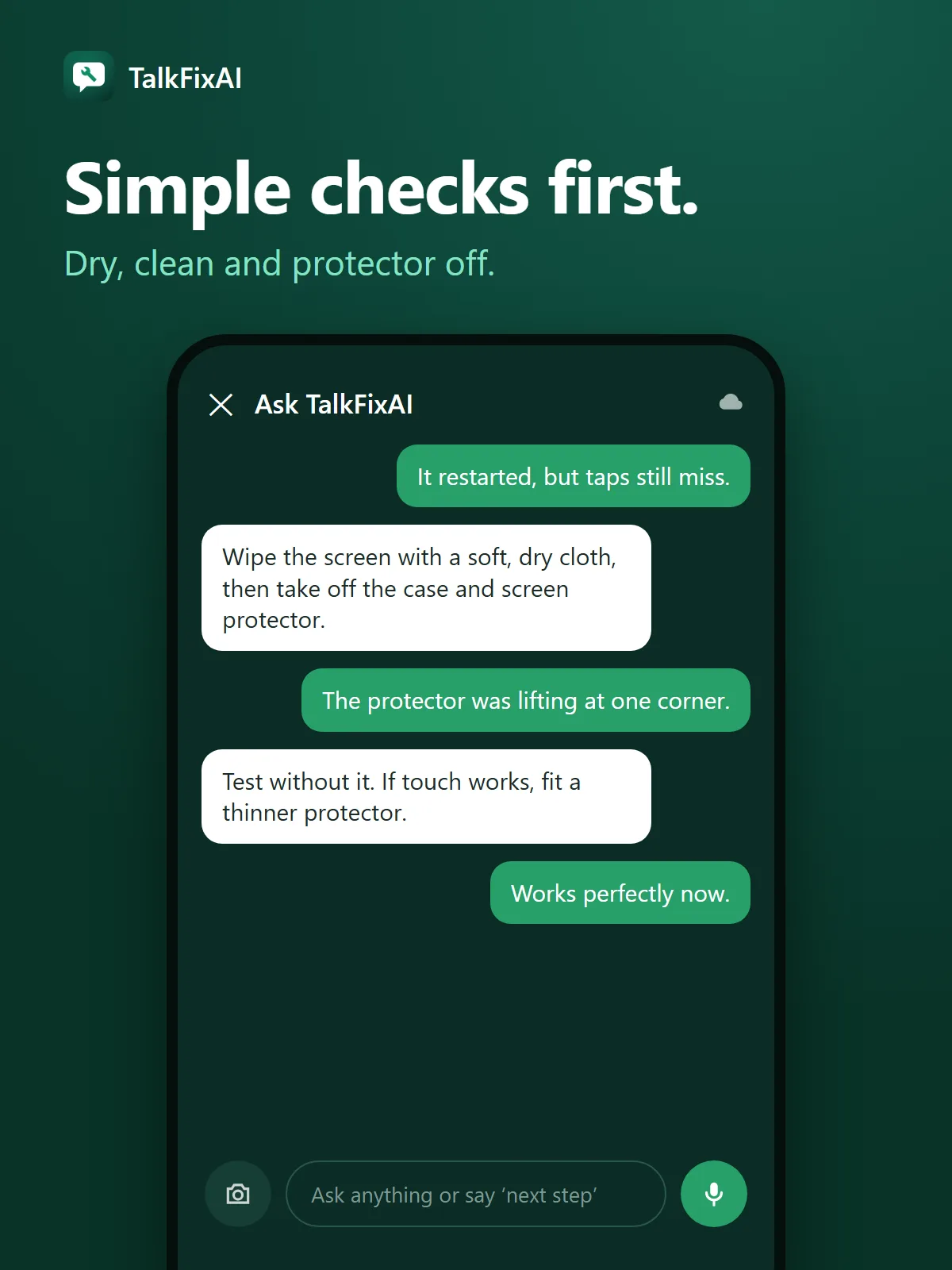
  2. Illustrated TalkFixAI chat. You: “It restarted, but taps still miss.” TalkFixAI: “Wipe the screen with a soft, dry cloth, then take off the case and screen protector.”
    Step 2Simple checks first.Dry, clean and protector off.
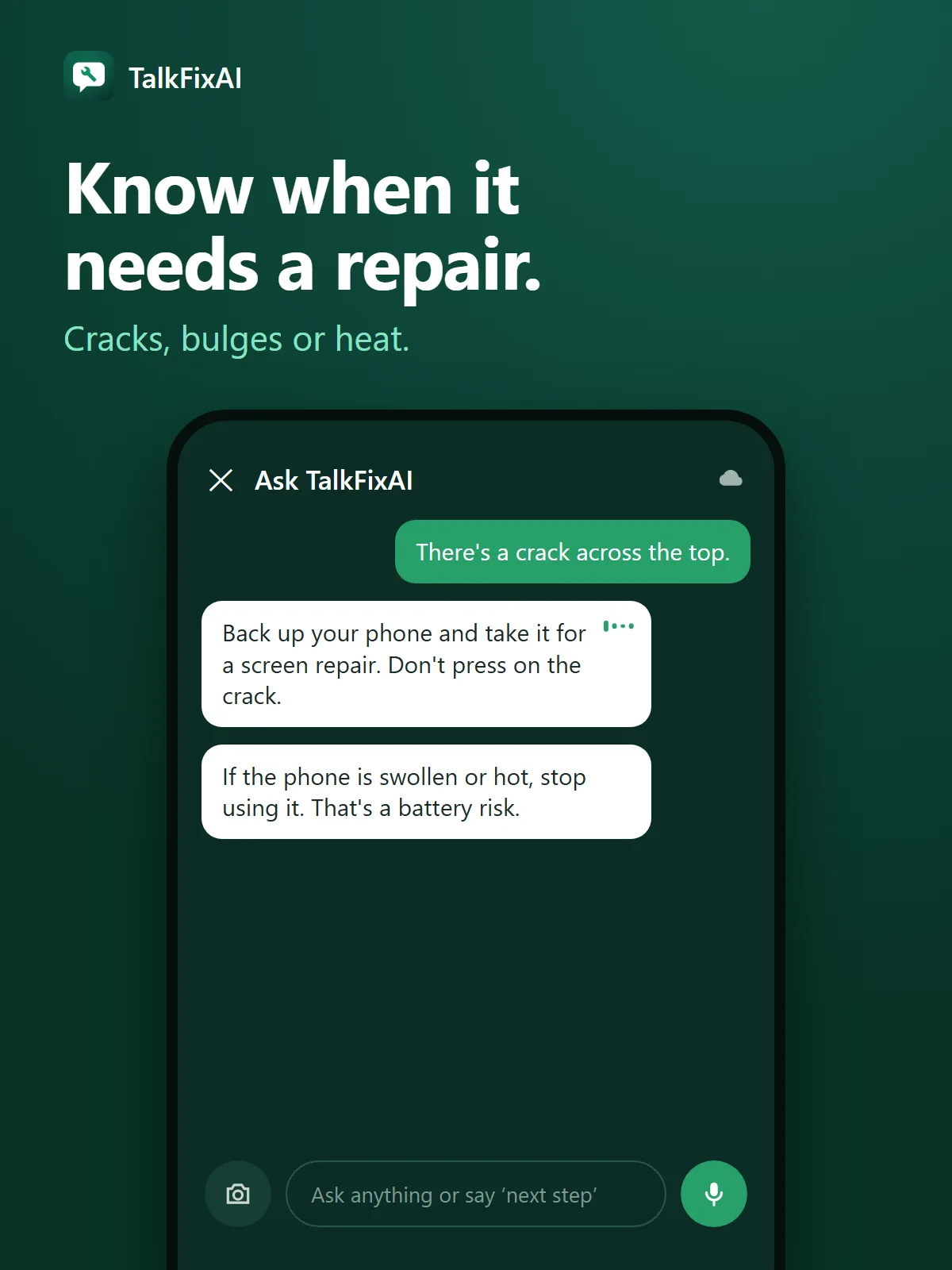
  3. Illustrated TalkFixAI chat. You: “There's a crack across the top.” TalkFixAI: “Back up your phone and take it for a screen repair. Don't press on the crack.”
    Step 3Know when it needs a repair.Cracks, bulges or heat.

Want TalkFixAI to talk you through this repair hands-free while your hands are busy? Try TalkFixAI, the free repair assistant that answers by voice, even offline.

More phone and gadget fixes