Wi-Fi Slow in One Room? How to Fix a Weak Spot

If Wi-Fi is fine near the router but slow in one room, the signal is being weakened by distance, walls or interference on the way. Move the router to a central, raised, open spot away from the microwave, try the 2.4 GHz band in that room if your router offers separate bands, and restart the router.

If the room is still slow, add a mesh point or extender roughly halfway between the router and the weak room, or run a cable to an access point.

By , maker of TalkFixAI · Published

Measure, move, then extend

  1. Step 1: Compare speeds near the router and in the slow room

    Run a speed test on the same phone or laptop standing next to the router, then in the slow room. If it is slow everywhere, the problem is your internet connection or router rather than coverage; see our guide to a router with a red light or contact your provider. If it is only slow in one room, carry on with these steps.

  2. Step 2: Check which Wi-Fi band you are on

    Many routers broadcast on 2.4 GHz and 5 GHz (and some on 6 GHz). As NETGEAR explains, higher bands are faster but have less range and pass through walls and floors less well. If your router shows two network names, connect to the 2.4 GHz one in the far room and test again. If it uses one name for both, your device normally chooses the band automatically.

  3. Step 3: Move the router to a better spot

    Place the router in a central position, raised off the floor on a shelf or table, and out in the open. Avoid corners, cupboards, cabinets, behind the TV and next to large mirrors or metal. If your router has adjustable antennas, NETGEAR suggests vertical antennas for a single floor and a mix of vertical and angled antennas for multi-storey homes.

  4. Step 4: Keep it away from interference

    Microwave ovens, baby monitors and cordless phones can interfere with Wi-Fi, especially on 2.4 GHz. Move the router away from them and test while the microwave is off. In flats and apartment buildings where many neighbouring networks overlap, changing the Wi-Fi channel in the router's app or settings page can help.

  5. Step 5: Restart the router and update it

    Unplug the router for 30 seconds, plug it back in and wait two minutes for it to start. While you are in the router's app or settings page, check for a firmware update and install it as the manufacturer describes. Test the slow room again afterwards.

  6. Step 6: Extend coverage to the room

    If the room is still slow, extend the network. Place a Wi-Fi extender or mesh point roughly halfway between the router and the weak room, where the router's signal is still good, not inside the weak room itself. TP-Link recommends keeping extenders away from walls, cabinets, mirrors and appliances. For thick concrete or brick walls, a wired option is more reliable: run an Ethernet cable to an access point, or use a mesh system with wired backhaul.

Why Wi-Fi is slow in one room

Wi-Fi is a radio signal, and it gets weaker with distance and with every wall, floor and large object it passes through. Concrete, brick, tiles and metal (including mirrors, steel almirahs, fridges and metal doors) block more than wood or plasterboard. That is why a bedroom at the far end of a house or a room on another floor often has a much weaker signal than the room with the router.

When the signal is weak, your phone or laptop connects at a lower speed and has to resend data, so pages load slowly and video calls stutter, even though the internet connection itself is fine.

Extender, mesh or cable?

  • Wi-Fi extender (repeater): cheapest. It rebroadcasts the router's signal, so it works best for one weak room in a smaller home. Place it halfway, not in the dead spot.
  • Mesh Wi-Fi system: several units that work as one network with a single name. Better for larger homes or several floors. NETGEAR suggests a mesh system for whole-home coverage.
  • Wired access point or Ethernet: the most reliable option through thick walls. A cable from the router carries full speed to the room, and an access point turns it back into Wi-Fi.

Before you buy anything

Write down your router's brand and model, its position, the speed near the router and in the slow room, and which band you were on. If your router came from your internet provider, ask whether they offer a mesh unit or a newer router: some providers in India and the US do.
Parts and tools you may need

Most fixes in this guide need no parts, so do the checks first. If you do need one, match it to your brand and model before you buy.

As an Amazon Associate, AICK Studio earns from qualifying purchases. It does not change the price you pay.

When to bring in your provider or an installer

Contact your internet provider or a network installer if:

  • Wi-Fi is slow everywhere, including next to the router (that is a connection or router problem),
  • your provider's router is old and cannot be updated,
  • you want Ethernet cable run through walls or between floors,
  • a mesh system or extender still cannot reach the room.

For speed problems across the whole home, check your plan's speed and your provider's outage notices first.

Wi-Fi coverage questions

Why is my Wi-Fi slow in one room only?

The Wi-Fi signal weakens with distance and with each wall, floor and large metal object it passes through. In a room far from the router, your device connects at a lower speed, so the internet feels slow even though the connection is fine elsewhere.

Should I use 2.4 GHz or 5 GHz in a far room?

5 GHz is faster but has less range and goes through walls less well. 2.4 GHz reaches further but is slower and more affected by interference. In a far room, 2.4 GHz often gives a steadier connection.

Where should I put my Wi-Fi router?

In a central, raised and open spot, away from corners, cupboards and cabinets, and away from microwaves, baby monitors and cordless phones. Avoid placing it on the floor or behind a TV.

Where should I put a Wi-Fi extender?

Roughly halfway between the router and the weak room, where the router’s signal is still strong. An extender placed inside the dead spot has little signal to repeat.

Is a mesh system better than an extender?

For one weak room in a small home, an extender is often enough. For larger homes, several floors or thick walls, a mesh system, ideally with wired backhaul, usually gives more even coverage under one network name.

Checked against: NETGEAR Support: Resolving poor wireless range or a weak WiFi signal; TP-Link: How to place your Wi-Fi extender for the best signal.

How TalkFixAI talks you through a fix

The screens below illustrate a TalkFixAI conversation that follows the steps in this guide. Your own conversation will depend on what you describe.

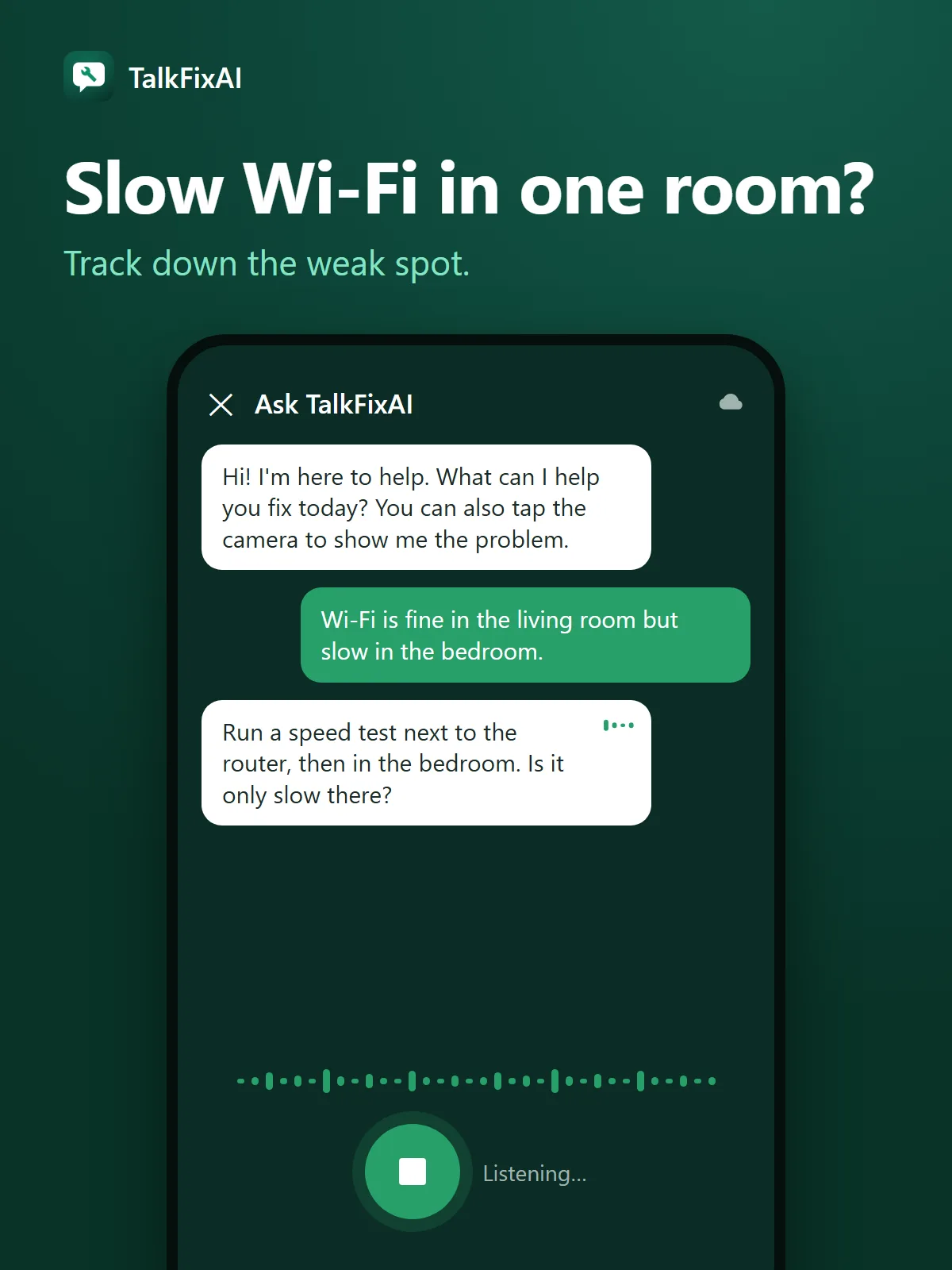
  1. Illustrated TalkFixAI chat. You: “Wi-Fi is fine in the living room but slow in the bedroom.” TalkFixAI: “Run a speed test next to the router, then in the bedroom. Is it only slow there?”
    Step 1Slow Wi-Fi in one room?Track down the weak spot.
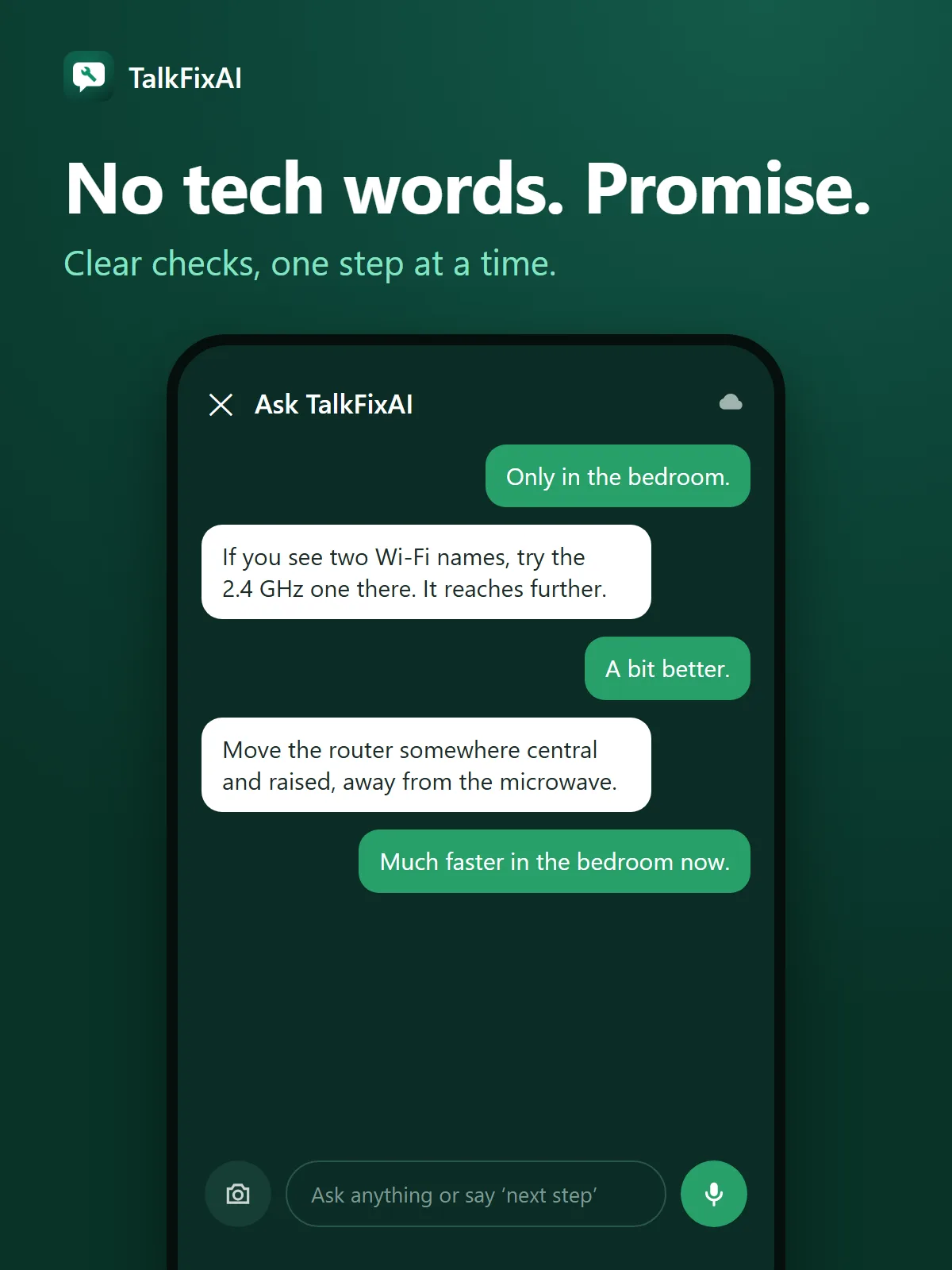
  2. Illustrated TalkFixAI chat. You: “Only in the bedroom.” TalkFixAI: “If you see two Wi-Fi names, try the 2.4 GHz one there. It reaches further.”
    Step 2No tech words. Promise.Clear checks, one step at a time.
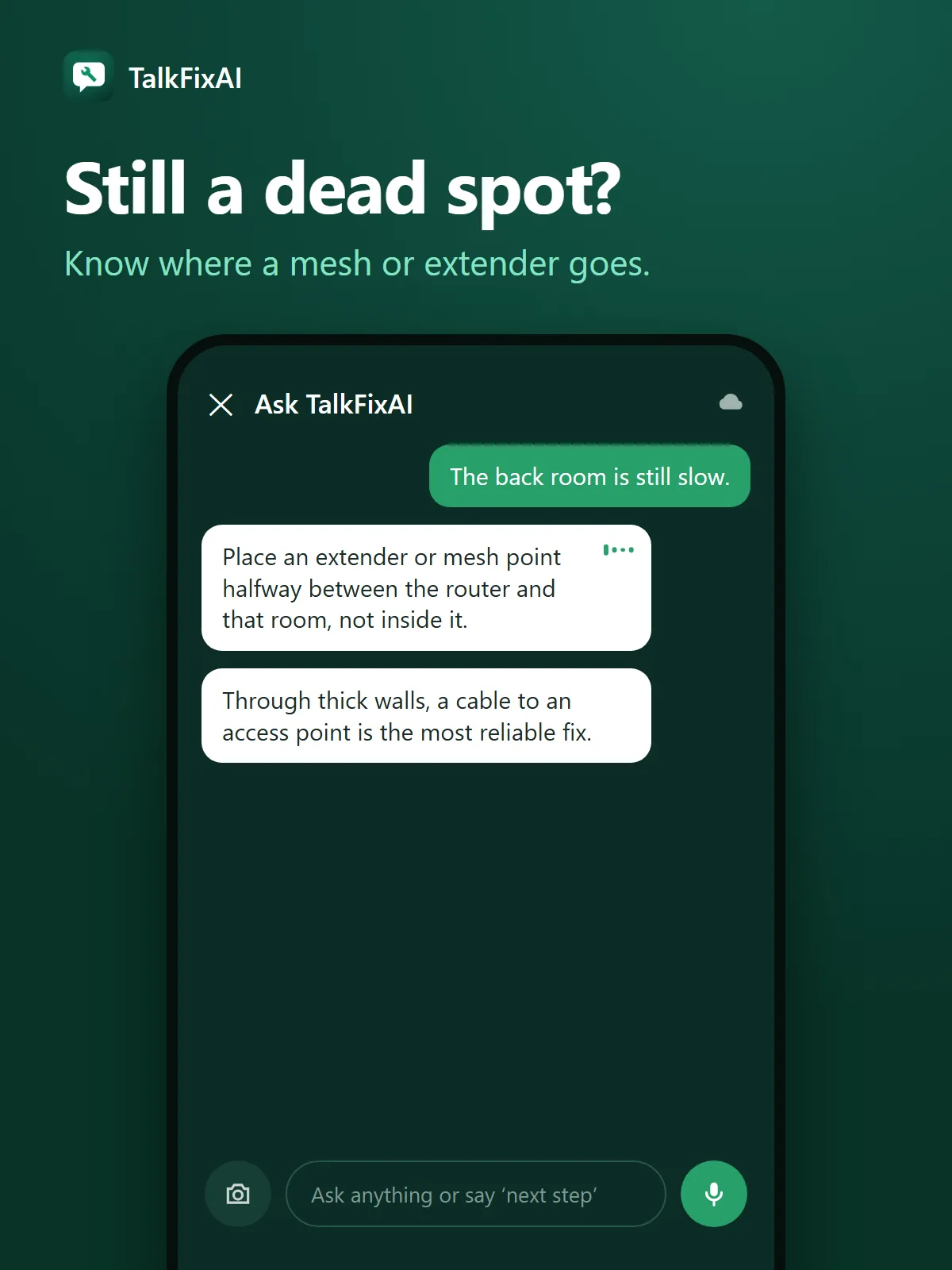
  3. Illustrated TalkFixAI chat. You: “The back room is still slow.” TalkFixAI: “Place an extender or mesh point halfway between the router and that room, not inside it.”
    Step 3Still a dead spot?Know where a mesh or extender goes.

Want TalkFixAI to talk you through this repair hands-free while your hands are busy? Try TalkFixAI, the free repair assistant that answers by voice, even offline.

More Wi-Fi and internet fixes